

WTO WA API focuses on fast responses, stable connections, and fewer disconnects for developer integrations.
Start with three developer priorities
For a SaaS product, CRM, or automation tool, you need a messaging workflow that stays usable and observable. A single successful send is only the beginning.
Protocol access: connect an account, then call the API
The WTO WA API connection mode described here uses a WhatsApp linked-device session. You sign in with a QR code or phone-number pairing code, then use the instance to call the relevant endpoints. This differs from the WhatsApp Business Cloud API onboarding flow, so choose the connection mode that fits your integration. Your application keeps control of its interface, business rules, and customer data while the API handles WhatsApp operations. You can use your existing backend language to make HTTP requests, process responses, and receive events. Start by creating an instance and connecting through a QR or pairing code. Use one test account for the initial workflow.Response speed: keep messaging requests moving
A new inquiry, an order update, or a support reply can trigger a message request. API response time affects when your application can update its interface, record a result, or schedule the next step. Low latency is a product priority for WTO WA API. Measure request duration under your actual network and concurrency conditions to evaluate whether it fits your workflow. Keep API response time separate from recipient delivery time. A fast HTTP response does not confirm delivery; the recipient’s network and account state also affect the experience. If a request times out, check its outcome before retrying to avoid duplicate messages.Stable connections: reduce interruptions to your workflow
Fewer disconnections mean fewer investigations into why a working integration suddenly stopped, and less disruption from repeated sign-ins. WTO WA API prioritizes connection stability and exposes state information your application can use. Query the current state or subscribe toCONNECTION_UPDATE through a webhook to update your connection indicator, alerts, or sending logic.
The connection guide uses these states:
open: the connection is established and you can continue the sending workflow.connecting: the connection is being established; wait and check again.close: the connection is disconnected and needs investigation.
instance.state is open before sending. See the connection-state reference.
Networks, account state, and platform changes can still affect stability. Use your own observations of disconnect frequency, duration, and recovery to assess the experience.
REST APIs and webhooks: bring WhatsApp into your product
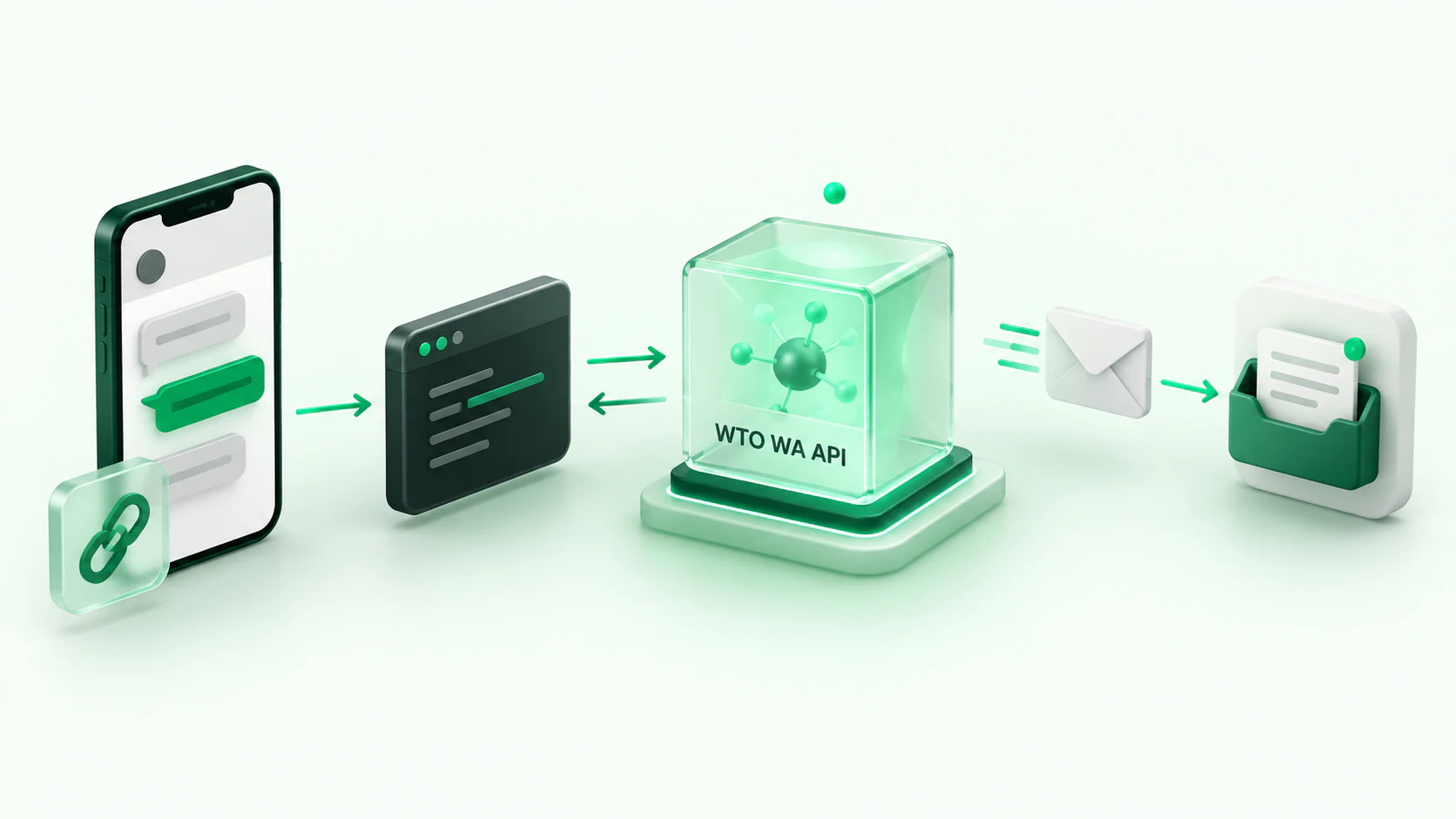
Integration concept: connect an account, call the API, and receive webhook events in your application.
- SaaS notifications: Trigger a notification at a relevant customer milestone and show the processing result in your product.
- CRM integration: Associate messaging with contacts, owners, and follow-up actions.
- Support and AI applications: Pass incoming message events to your own service, then call a sending endpoint to reply.
Build one complete workflow first
- Create an instance. Use credentials authorized for that instance and keep them on your backend.
- Connect the account. Choose QR or pairing-code login and follow the linked-device instructions.
- Confirm the state. Wait for
openbefore sending. - Send a test message. Follow the endpoint documentation to message your own test number. Check both the API result and actual receipt.
- Receive events. Configure a webhook for the message events and connection changes your application needs.
my-instance with your instance name and YOUR_API_KEY with credentials authorized for it:
Start integrating WTO WA API
Connect your first WhatsApp instance with a QR or pairing code and build a messaging channel for your SaaS, CRM, or automation application.