

Key takeaways
- WTO WA API provides WhatsApp protocol access with QR code and phone-number pairing login.
- Scan the QR image or enter the pairing code in WhatsApp on the account holder’s phone.
- A login code does not confirm a successful connection. Wait for
instance.stateto beopenbefore sending.- REST requests initiate message operations; webhooks bring replies and connection events into your application.
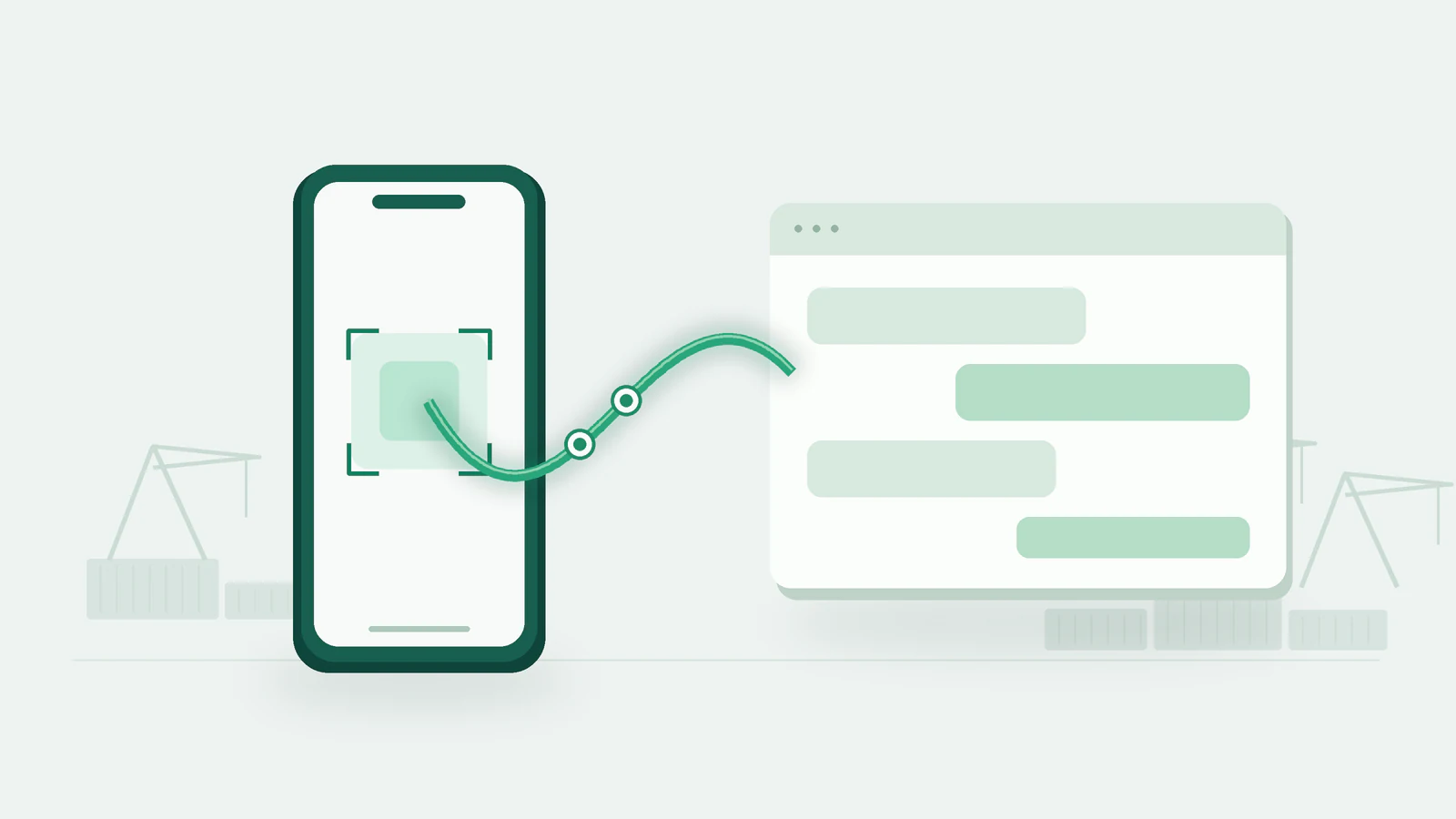
Concept illustration of export messaging integration, not a product screenshot.
Why connect WhatsApp to export business software?
Connect a conversation to business data when a message needs to trigger the next task. A buyer confirms a model, so your salesperson updates the quotation. A customer replies with a shipping address, so your team checks the sample shipment details. If you build export software, start with one concrete task: send a quotation-related message from a customer profile and associate the reply with that contact. This tests both your message channel and your application’s customer matching. WTO WA API provides message operations. Your application implements contact matching, quotation approval, order lookups, and task assignment. For a broader assessment of connection state and event handling, read the developer API overview.What does the WTOCRM WhatsApp protocol API provide?
WTO WA API connects WhatsApp through a linked-device session and exposes connection and messaging operations as HTTP endpoints. You can keep your existing HTTP-capable technology stack and build your own interface and business rules.
This guide covers WTOCRM’s linked-device protocol access, which is not Meta’s official WhatsApp Business Platform or Cloud API integration. The account holder must complete device linking, and connection behavior and use remain subject to network conditions, account state, and platform rules.
WTOCRM publishes this guide to explain how to use its WhatsApp API. The linked connection, messaging, and webhook references define the current parameters.
Browse the WTO WA API reference for supported operations. Verify text messaging first, then add media and other capabilities when your workflow needs them.
Link the account with a QR code or pairing code
Prepare a linked-device instance using the create instance reference, then open the connection guide. Have the instance name, an API key authorized for that instance, and the account holder’s WhatsApp phone ready. Keep the key on your backend and replace example values before testing. Both methods use the same connection endpoint. Omitnumber for a QR code; include number to request phone-number pairing.
QR login: display the image and link on the phone
Make this request from your backend, replacingexport-demo with your instance name:
base64 value as a QR image, or encode code into a QR image. The base64 value already includes the PNG data URL prefix; code is the raw QR payload.
On their phone, the account holder opens WhatsApp, goes to Linked devices, chooses Link a device, and scans the image. Show login QR images only to the authorized account holder.
Pairing login: submit a number and enter the code on the phone
To use a pairing code, include the WhatsApp phone number in the connection request:+, spaces, or punctuation.
Read pairingCode from the response. On the phone using that number, the account holder opens Linked devices, starts linking a device, selects Link with phone number instead, and enters the pairing code. Menu labels can vary by app version.
pairingCode is the code to enter on the phone; code is QR data. Keep those fields separate. Repeated pairing requests can generate a new code, so avoid replacing a code while someone is entering it. If a field is not ready, follow the connection guide and wait before retrying.
Start chatting: verify the connection, send, and receive
After the phone step, check the connection before sending. A complete integration test means your application sends a message, the test recipient receives it, and a reply event reaches your backend.Confirm the connection state
Call the connection state endpoint:instance.state to be open. A connecting value means the connection is in progress; close means disconnected. A QR code, pairing code, or successful HTTP response does not replace this check.
Send your first test message
Send an explicit test message to your own test recipient. This request follows the send text message reference. Replace the number with your test number:Receive replies through a webhook
Use the webhook configuration reference to set your HTTPS callback URL and required events. Configure message callbacks using the events your instance supports. The connection guide also documentsCONNECTION_UPDATE for connection state changes.
Have the test recipient reply. Verify the event reaches your backend and maps to the correct instance and contact. Deduplicate by message identifier and distinguish incoming messages from your own outgoing messages to prevent repeated follow-ups or automatic reply loops.
Build one export workflow in your existing software
Start with inquiry-to-quotation communication. Your salesperson sends a message from the customer page, a reply arrives through the webhook, your application associates it with the customer, and the salesperson decides the next action.
These are integration patterns you can build. Linking an account does not automatically synchronize quotations, orders, or tasks; your application connects the relevant business data. For images and documents, consult the media message endpoint.
Use messages for business conversations your customers have agreed to receive. Validate the complete flow with one test instance before adding numbers, teams, and automation rules.
Developer questions
Can salespeople chat from our software after QR login?
After connection, your software can use the sending endpoints and webhooks to build a chat experience. Your application supplies the interface, message lists, contact association, and access control. If you need a ready-made workspace, explore WTOCRM’s conversation features separately.Where does the pairing code go?
Enter it in the linked-device flow in WhatsApp on the account holder’s phone. The API returnspairingCode, which your application displays to the account holder. After phone confirmation, check the connection state.
Why can I not send after receiving a QR code?
The image is a login credential. The account holder still needs to scan it and finish device linking. If code generation or connection is pending, check the state and wait foropen. Follow the connection guide for troubleshooting.
Can I integrate with Python, Java, PHP, or Node.js?
You can use each language’s HTTP client for REST requests and your own backend for webhooks. This guide does not depend on a particular SDK. Follow the documented authentication, request structure, and response handling. Connect your first WhatsApp instance. Choose QR or pairing-code login, confirmopen, send a test message, and receive a reply. Open the WTOCRM WhatsApp API connection guide to bring messaging into your export software.