

Conversations Overview
The Conversations section is the communication center of WTO CRM, where you can manage all interactions with your customers through different communication channels. In this area, you can view, respond to, and manage conversations in a centralized way, regardless of the channel used (WhatsApp, Email, Facebook, Instagram, Telegram, SMS, Website Widget, or API).Accessing Conversations
To access the conversations area:- In the left sidebar menu, click Conversations
- The main screen will be displayed with the list of all active conversations
Conversations Main Interface
The conversations screen is divided into two main areas: the conversation list on the left and the selected conversation viewing area on the right.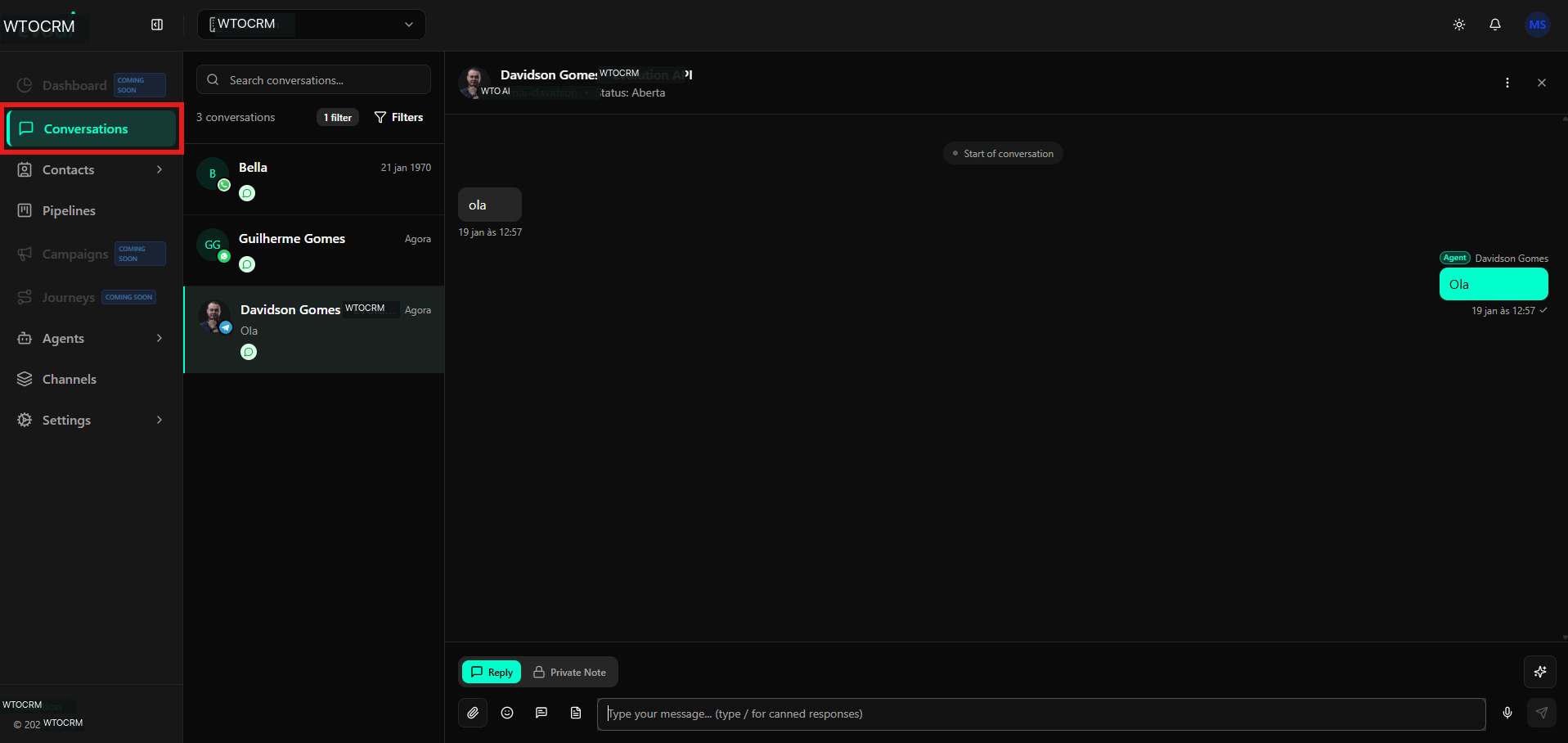
Interface Structure
The main interface presents:Conversation List Area
The left column displays all available conversations:- Search Bar: Field at the top to search for specific conversations
- Conversation Counter: Displays the total number of conversations found (e.g., “3 conversations”)
- Filter Indicator: Shows how many filters are active (e.g., “1 filter”)
- Filters Button: Allows applying and managing filters
- Contact Avatar: Profile photo or name initial
- Contact Name: Customer’s full name
- Communication Channel: Icon indicating the channel (Telegram, WhatsApp, Email, etc.)
- Timestamp: Date and time of the last message (e.g., “Now”, “21 Jan 1970”)
- Message Preview: Last message exchanged in the conversation
- Status Indicators: Icons indicating conversation or channel status
Conversation Viewing Area
The right column shows the selected conversation:-
Conversation Header:
- Contact name and channel (e.g., “Davidson Gomes - WTO API”)
- Unique identifier (e.g., “wtoai-davidson”)
- Conversation status (e.g., “Status: Open” or “Status: Pending”)
- Action buttons (three-dot menu, close)
-
Message History:
- Received messages appear on the left
- Sent messages appear on the right with agent name
- Timestamps for each message
- Read/delivery indicators
-
Composition Area:
- Tabs for Reply (Reply) and Private Note (Private Note)
- Text field for typing messages
- Icons for attachments, emojis, mentions, and quick response templates
- Send button
Search and Filters
The search bar and filters are essential tools for quickly locating specific conversations.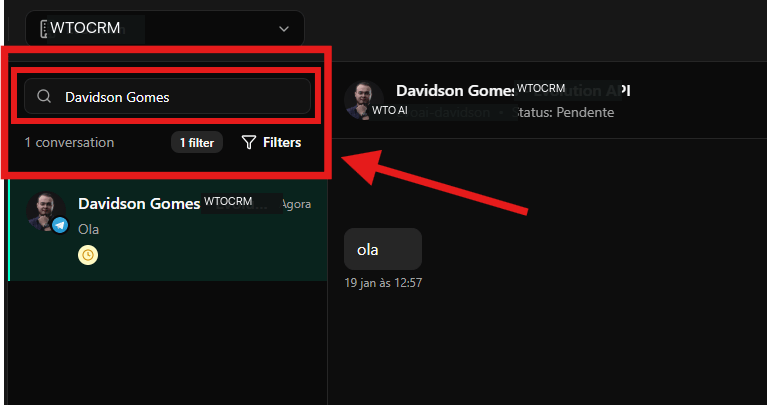
Search Bar
At the top of the conversation list, you find:- Search Field: With placeholder “Search conversations…”
- Magnifying Glass Icon: Indicates the search functionality
- Functionality: Allows searching conversations by contact name, keywords, or message content
- Click on the search field
- Type the contact name or keyword (e.g., “Davidson Gomes”)
- The list will be automatically filtered showing only matching conversations
- The counter will be updated (e.g., “1 conversation”)
Counter and Filters
Below the search bar:-
Conversation Counter: Displays the total number of conversations found after applying search and filters
- Example: “1 conversation” or “3 conversations”
-
Active Filters Indicator: Shows how many filters are applied
- Example: “1 filter” indicates that there is one active filter
- Filters Button: With funnel icon, allows opening the filter configuration modal
Filtered Conversation List
When search or filters are applied, the list displays only matching conversations:- Avatar and Name: Profile photo and contact name
- Channel Icon: Small icon overlaid on the avatar indicating the channel (e.g., blue paper airplane icon for Telegram)
- Timestamp: “Now” for recent conversations or specific date/time
- Message Preview: Last message exchanged
- Status Indicators: Icons that may indicate:
- Conversation status (pending, open, resolved)
- Business hours (yellow clock icon)
- Priority or other states
Configuring Conversation Filters
The system allows applying multiple filters to refine the conversation view.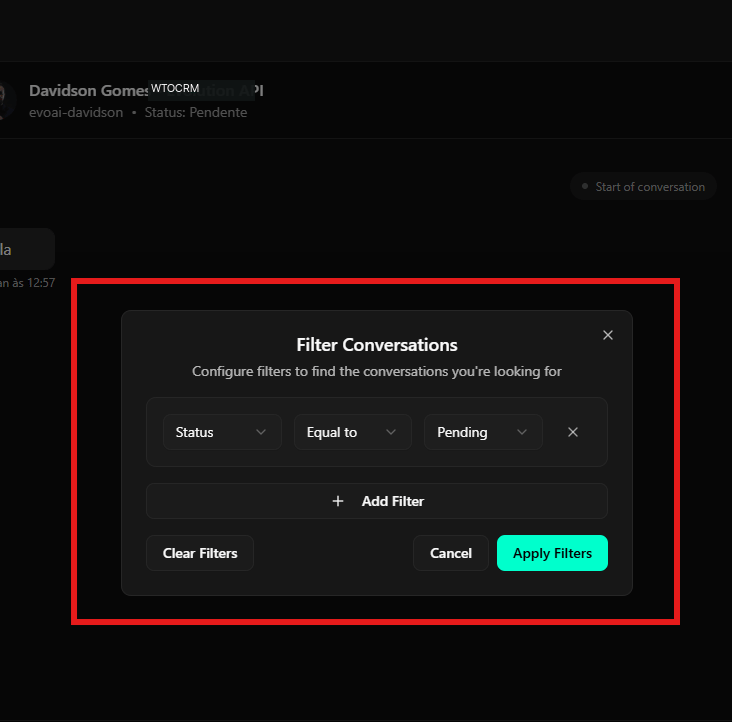
Accessing the Filters Modal
To open the filters modal:- Click the Filters button at the top of the conversation list
- The Filter Conversations modal will be displayed
Filters Modal Structure
The modal presents:Title and Description
- Title: “Filter Conversations”
- Description: “Configure filters to find the conversations you’re looking for”
- Close Button: “X” icon in the upper right corner
Configured Filters
The main area displays already applied filters: Example of Active Filter:- Field 1 - Filter Type: Dropdown with options such as “Status”, “Agent”, “Channel”, “Labels”, etc.
- Field 2 - Operator: Dropdown with operators such as:
- “Equal to”
- “Not equal to”
- “Contains”
- “Does not contain”
- Field 3 - Value: Dropdown or text field with the specific value (e.g., “Pending”)
- Remove Button: “X” icon on the right to remove the individual filter
- Filter: Status = Equal to = Pending
- Result: Shows only conversations with “Pending” status
Add New Filter
- “Add Filter” Button: With ”+” icon in the center of the modal
- Functionality: Allows adding multiple filtering criteria
- Usage: Click to add a new filter row
Action Buttons
At the bottom of the modal:- Clear Filters: Removes all applied filters
- Cancel: Closes the modal without applying changes
- Apply Filters: Green button that applies the configured filters and updates the list
Available Filter Types
Filters can be applied by:- Status: Pending, Open, Resolved, Closed
- Agent: Filter by assigned agent
- Channel: WhatsApp, Email, Telegram, Facebook, Instagram, SMS, API, Website Widget
- Labels: Filter by applied labels
- Date: Creation period or last update
- Priority: Conversation priority level
Final Considerations
- The conversations interface was designed for intuitive navigation and interaction
- Search allows quickly locating conversations by name or content
- Filters help organize and manage large volumes of conversations
- The distinction between public replies and private notes is fundamental for internal team communication
- All messages are synchronized in real-time between all agents
- Conversation status can be changed directly in the interface
- Each communication channel has specific icons and indicators for easy identification