Users
The Users section allows you to manage all agents and administrators with access to your account. Here you can invite new members, define permission levels (roles), export user data, and perform bulk invites.Accessing User Management
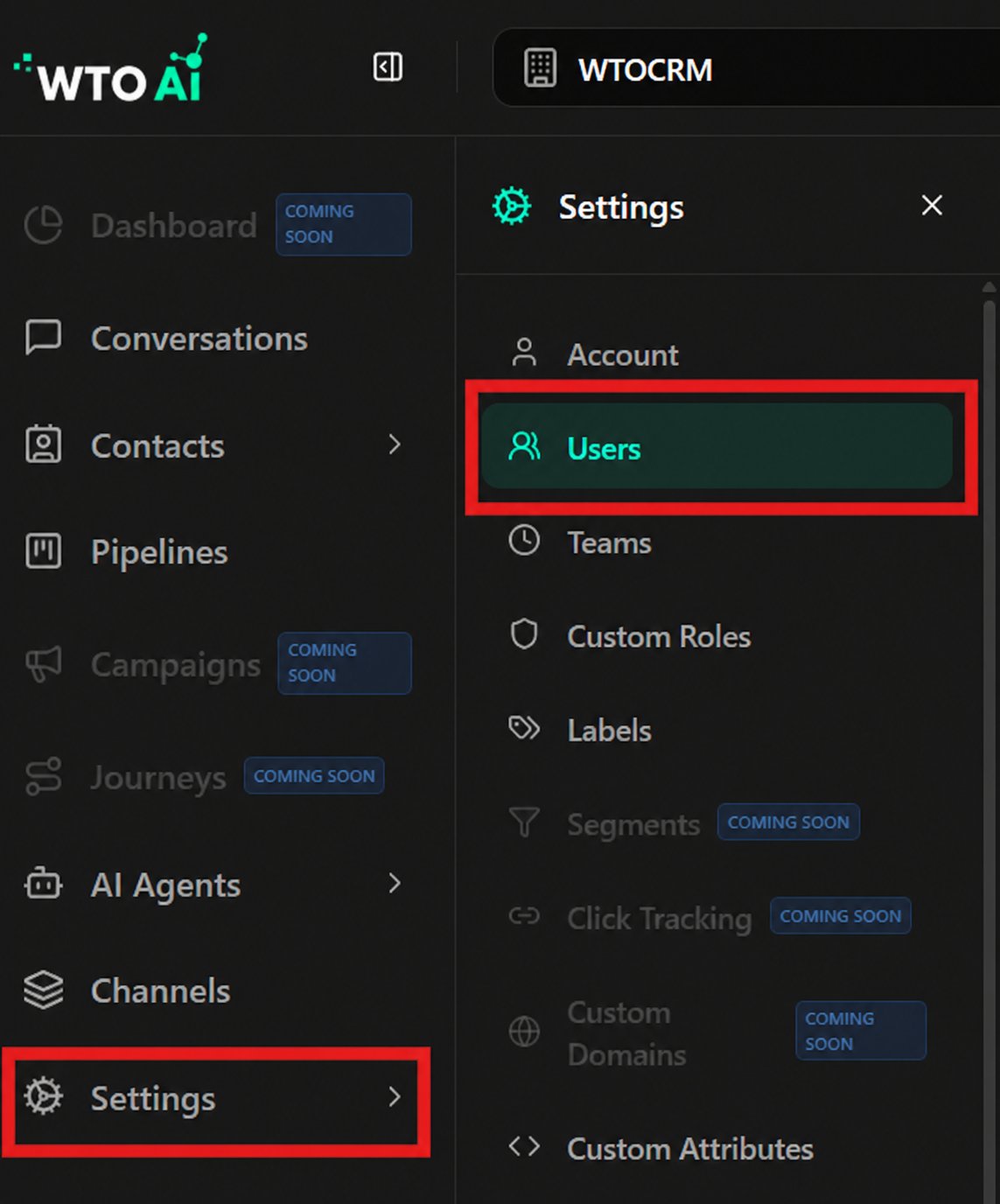
- In the sidebar menu, click Settings.
- Select the Users option.
Searching and Filtering Users
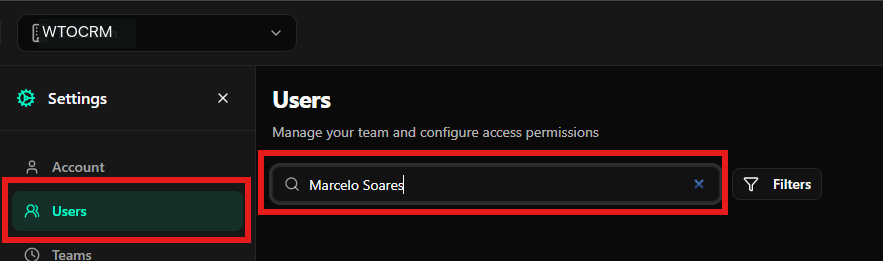
The platform offers tools to quickly locate team members:- Direct Search: Use the search bar at the top to filter by name or email.
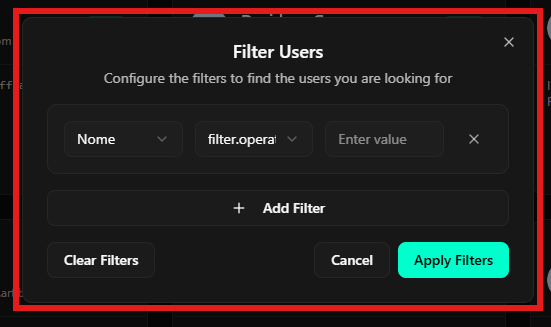
- Advanced Filters: Use the filters button for more complex criteria.
Creating a New User
To add a member individually to your team:-
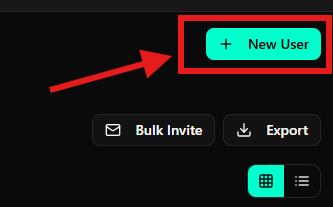
Click the + New User button in the top right corner.
-
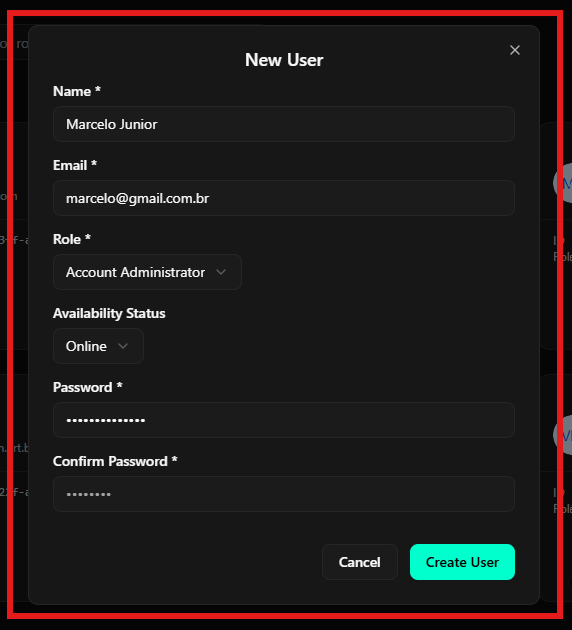
Fill in the required fields in the form:
- Name: Full name of the collaborator.
- Email: The email address that will be used for login.
- Role: Defines the access level (E.g., Account Administrator, Agent).
- Availability Status: Defines if the user starts as Online, Offline, or Busy.
- Password: Set an initial password and confirm in the field below.
-
Click Create User to finish.
Bulk Invite
This functionality is ideal for adding large teams at once.-
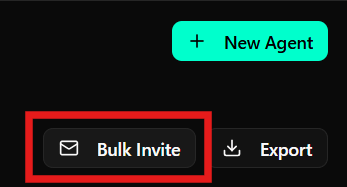
Click the Bulk Invite button.
-
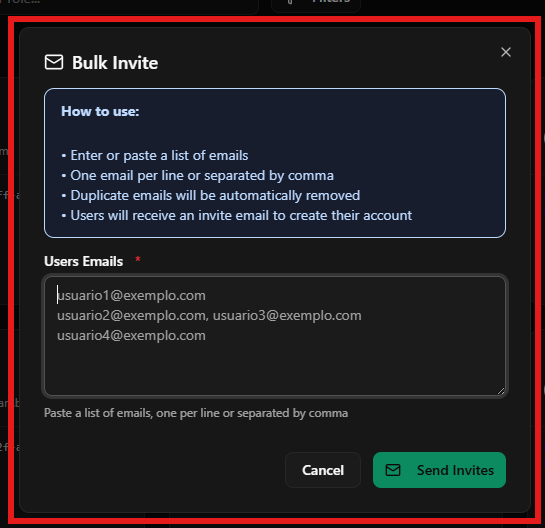
In the modal that will be displayed:
- Paste the list of emails, one per line or separated by commas.
- The system will automatically remove duplicate emails.
- Users will receive an invitation email to create their accounts.
-
Click Send Invites.
Exporting Data
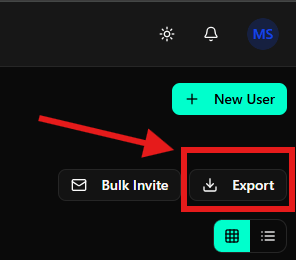
You can generate a file with the list of all account users for audit or external management purposes.- Click the Export button located in the page header.
- The system will process the download of user data.