Teams
Teams allow you to organize your agents into logical groups for better management and automatic conversation assignment. You can create teams such as “Sales”, “Support”, or “Finance” and associate specific agents with each one.Accessing Teams
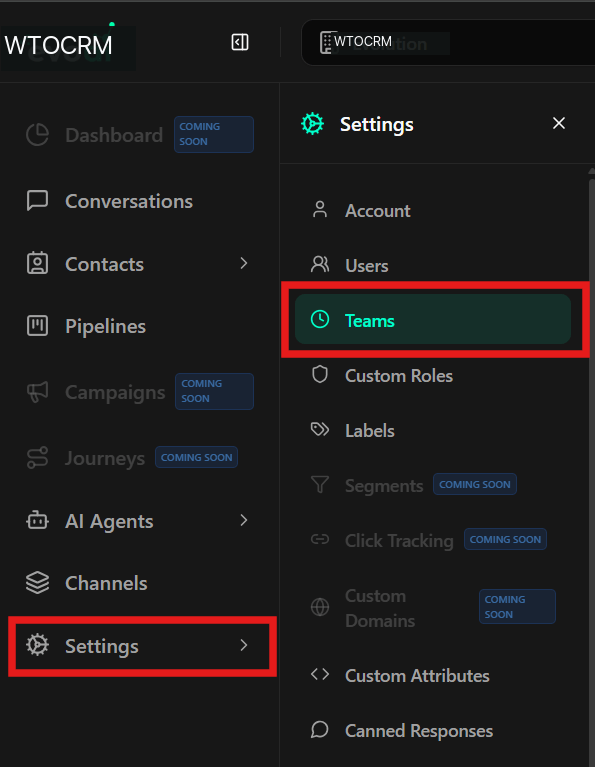
To access team management, follow the steps below:- In the left sidebar menu, click Settings.
- In the submenu that opens, click Teams.
Creating a New Team
To create an organizational structure:- Click the + New Team button in the top right corner or in the center of the screen (if no teams exist).
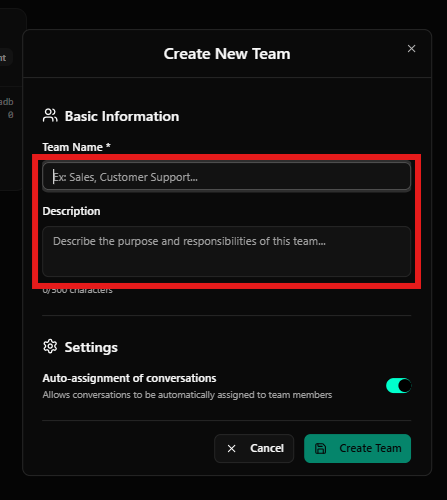
- In the window that opens (Create New Team), fill in:
- Team Name: E.g., Sales, Customer Support.
- Description: Describe the purpose and responsibilities of this team.
- Auto-assignment of conversations: Enable the switch if you want conversations sent to this team to be automatically distributed among members.
- Click Create Team.
Managing Teams
After creation, teams appear in card or list format, where you can:-
Search: Find teams by name using the search bar at the top.
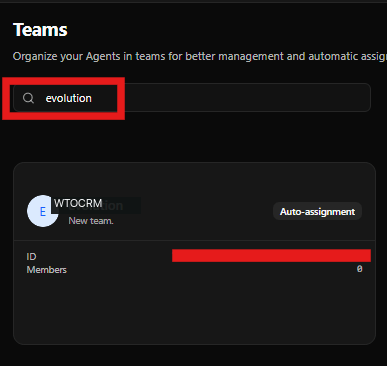
- Member View: The card displays the number of linked agents.
- Auto-assignment: An indicator shows if automatic assignment is active for that team.
Actions and Members
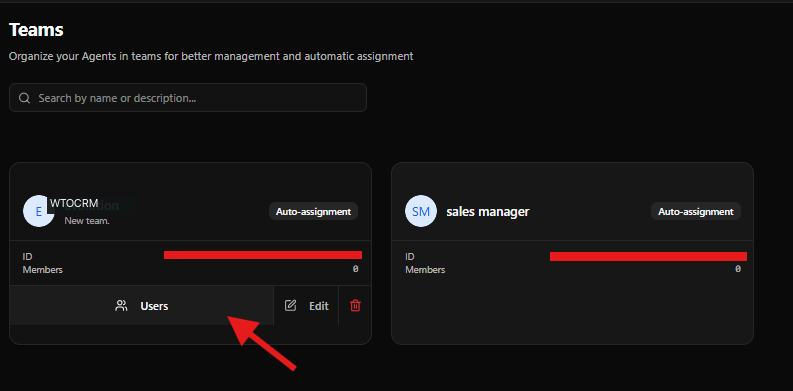
Each team card has action buttons at the bottom:- Users: Click to manage which agents belong to this team.
- Edit: Change the name, description, or assignment settings.
- Delete: Permanently removes the team (trash icon in red).